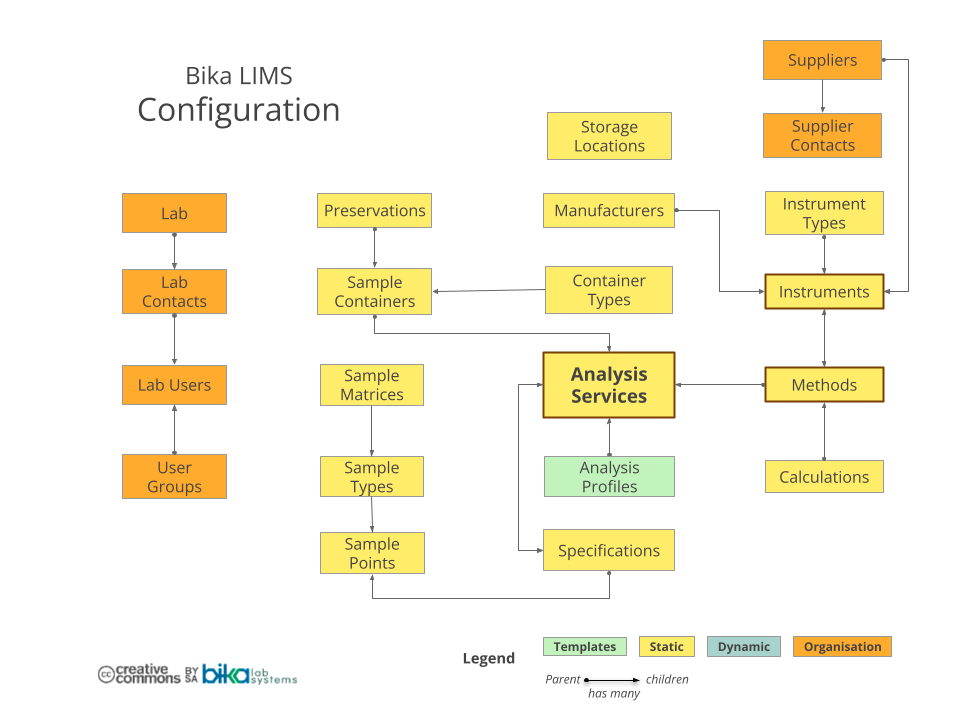
7 Analysis Services
The tests your lab offers
Analysis Categories
Before you get to Analysis Services themselves, it is a good idea to configure Analysis Categories to keep the Services logically grouped together on lists and forms, e.g Chemistry and Microbiology. Without enabling categories, ASs and Analyses are listed alphabetically
Be sure to enable Categories on the Analyses tab in the Setup:

Sort Order
To further refine the sort order, define Sort Keys for the Categories for them to be listed in a specific order, e.g. analysis preparation steps first - Categories with lower Sort Keys rank higher up on lists, top down from lowest to highest Sort key

Creating Analysis Services
Click on Analysis Services item once in the Setup. The Analysis Services list summarising some of the main parameters for them are displayed
Click on [+ Add] to create a new AS, or click on the title of an existing one to edit it

Open images in new tabs to enlarge
A page for the AS opens to be completed or edited. It contains a number of tabs on which the analysis service's attributes are grouped together for its. proceed along them left to right as per sub section at left
Global Analysis Service settings
These first
AS Description, Analysis
Department and Category, Keyword, Unit, Price. Analytical parameters; Precision, Verification options, scientific formats etc
Measure of Uncertainty. Limits
Configure Measures of Uncertainty, Limits of Detection and Quantification
Results Options
Configure canned texts as Results Options
AS Methods and Instruments
Set up the AS method, manual and instrument results capture, calculations if required
Advanced Analyses
Capture information about the conditions of a Sample that will influence how it will be analysed
Time Series Analyses
Capture and graph periodic Analysis Results
Category and AS list order
By default Analysis Categories and the Services they contain are listed alphabetically. This is not always optimal for labs, and they can be resorted using their Sort Order values
Category Sort orders are configurable on each Category While Analysis Service Sort Order can be edited on the AS list too. Use any value between 0.0 - 1000.0
Duplicating an Analysis Service
The [Duplicate] button will copy a selected Analysis Service to a new one containing all the parameters of the original which can then be edited and save time

You may then enter the new AS' Title and Keyword before saving it an navigating their to edit it in details - the copied Analysis Service inherits all other attributes from the original

If you get something wrong in the process - e.g. the Keyword has to be unique - the system will respond with a error message